
The no-monitor life
So you love developing little projects for your Raspberry Pi but for whatever reason you don’t have a monitor for it. Maybe you can’t afford the one you want right now, or maybe you don’t have the space in your apartment/van. All you have is a laptop and a Pi.
You could launch a Flask web app where you stream the video feed from your picam, disconnect your laptop from your apartment’s Wi-fi, re-connect your laptop to the Pi’s Wi-fi signal and then go to localhost:4200. Bask in those glorious 8 Mega pixels.
Or you could use X forwarding over SSH.
To get going
- Start as you usually do by opening an SSH connection to the pi.
- Have an Xclient installed on the remote device. On the Raspberry pi it should already be installed. Try
startxin a terminal on your pi to find out. - If the PC with a display is running Windows, install Xming.
- Run Xming. If the icon shows up in your Task Bar (bottom right), it’s running.
- Using Putty, open an SSH connection to the Pi’s IP address, with X11 forwarding enabled. The default “X display location” will be Server:0.0, which is the default for Xming too, so nothing to enter here.
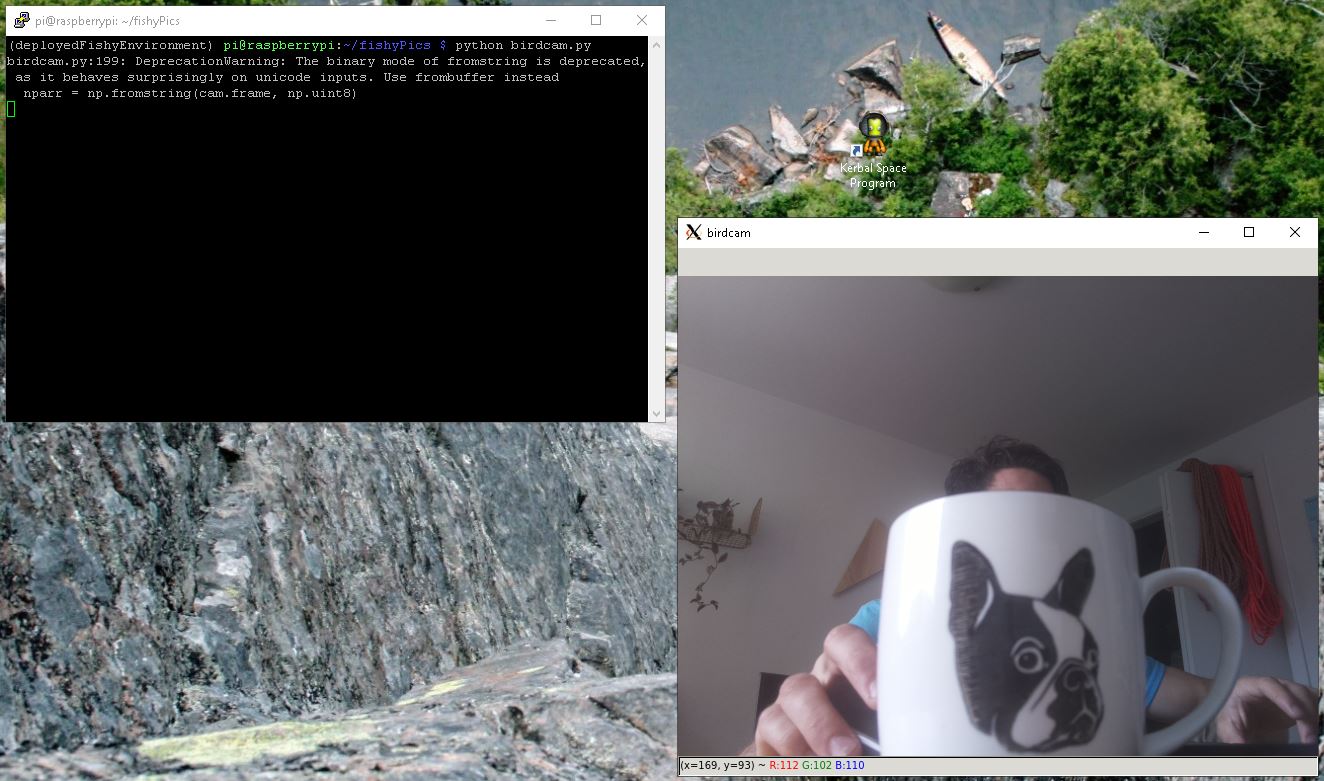
- Run your application. It should show up on your Windows desktop:
Snags
On your Pi, in the sshd_config file at /etc/ssh you need to have the line:
X11Forwarding yes
uncommented. I also have the lines
X11DisplayOffset 10 and
X11UseLocalHost yes
The line X11UseForwarding yes should not be written into your sshd_config. Some sites mention this line, but this must be an outdated configuration, because it will prevent ssh from restarting correctly, and then you’ll no longer be able to log onto your Raspberry Pi unless you wipe the SD or buy a monitor (which we’ve established is not an option for you).
Things you should know
The PC on which you’re viewing the Pi’s output is the X server.
Applications are the clients to this server, and are streaming the contents of their windows through SSH to Xming on your PC.
The whole pi
What if you want see your Pi’s desktop ? In this case: startlxde-pi will display pi’s user desktop on Xming, and lxsession will do the same for the root.